SLA Policies
What are SLA Policies?
The SLA Policies section allows managing service level agreement policies to define target times within the Ticket workflow.SLA policies allow measuring the maximum expected time to reach a specific stage within the support process.
SLA Policy Management
Accessing the SLA Policies List
To access the SLA Policies list, go to:Helpdesk → Configurations → SLA Policies
Once inside, the main list of registered SLA policies will be displayed.
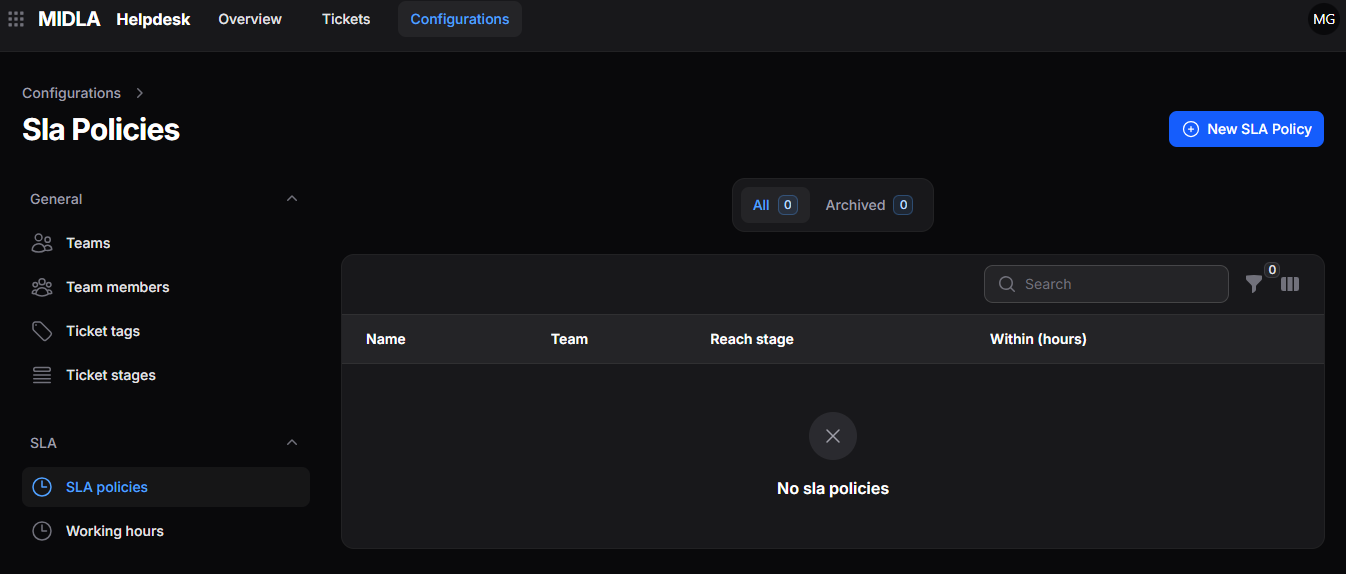
Figure 1. SLA Policies list
List Views
The SLA Policies list provides quick views to organize records according to their status.The available views are:
- All: displays all active policies.
- Archived: displays archived policies.
List Tools
The SLA Policies list includes tools to manage and locate records.Allows searching SLA policies registered in the system.
Allows applying filters to display policies according to specific criteria.
Allows selecting and reorganizing the visible columns in the list.
Create an SLA Policy
To create a new SLA policy:
- Go to Helpdesk → Configurations → SLA Policies.
- Click New SLA Policy.
- Complete the required information in the form.
- Click Create to save the record.
Creation Form
When selecting New SLA Policy, the form will be displayed where the required data must be completed to register a new SLA policy.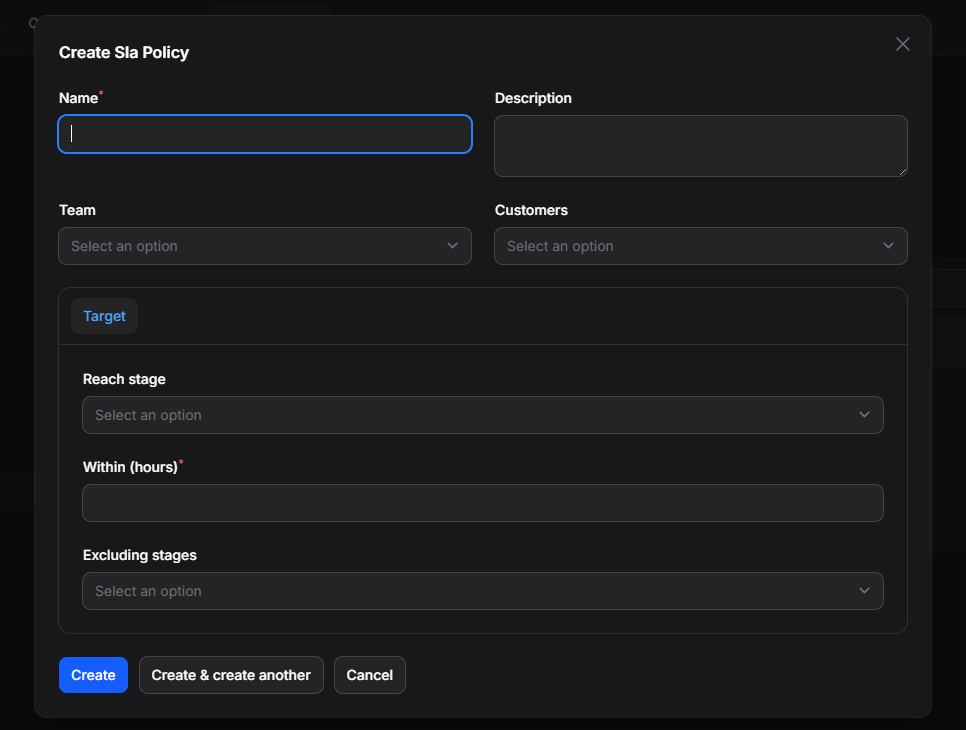
Figure 2. SLA Policy creation form
General Information
The General Information section contains the main information of the SLA policy.
Available Fields
- Name: SLA policy name.
- Description: internal description of the policy.
- Team: team associated with the policy.
- Customers: specific customers to whom the policy will apply.
Target
The Target section allows defining the time objective of the SLA policy.
Available Fields
- Reach Stage: target stage that must be reached.
- Within (hours): maximum number of hours allowed to reach the defined stage.
- Exclude Stages: stages excluded from the SLA calculation.
Available Actions
- Create: saves the SLA policy and completes the creation process.
- Create and create another: saves the current policy and allows creating a new one.
- Cancel: cancels the operation and returns to the list.
Actions on an SLA Policy
Once an SLA policy has been created, it will be possible to access its information from the list to view, edit, or delete the record.
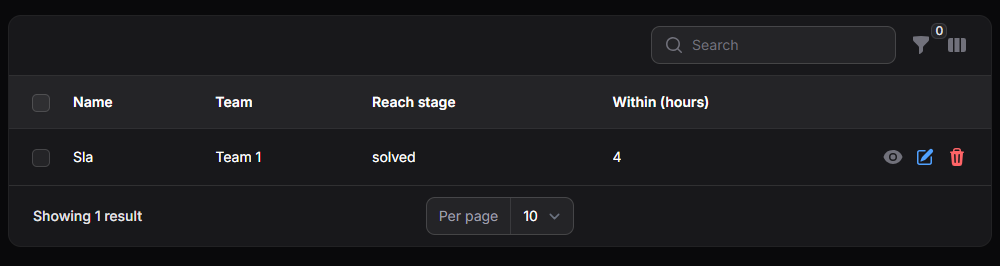
Figure 3. Created SLA Policies list
View an SLA Policy
The View option allows access to the complete details of an SLA policy.Once accessed, all registered information will be displayed, including teams, customers, and time targets.
Edit an SLA Policy
The Edit option allows modifying the information registered in the SLA policy.From this action, it is possible to update targets, times, and associated configurations.
Delete an SLA Policy
The Delete option allows removing an SLA policy from the main list.Once deleted, the policy will remain available in the Archived view, where it can be restored or permanently deleted.
SLA policies deleted using Delete permanently cannot be recovered later.